


Apple Business Manager setup has changed in 2026. The old Apple Business Manager portal is now part of Apple Business . So, if you are searching for Apple Business Manager setup, what you really need is an Apple Business setup guide.
This guide is for IT admins, MSPs, operations teams, and small business owners who manage Apple devices at work. It covers account setup, company verification, domain verification, MDM connection, device suppliers, Apple Configurator, Managed Apple Accounts, apps, books, and common setup issues.
Along the way, you will also see where to connect related guides, such as your MDM setup guide , Microsoft Intune device management guide , Mac management guide , and iPhone and iPad business setup guide .
Apple Business Manager is now Apple Business
Apple Business Manager is no longer a separate portal. Apple announced Apple Business in March 2026, and the platform became available starting April 14, 2026. Apple also said Apple Business Manager, Apple Business Essentials, and Apple Business Connect would no longer be available after Apple Business launched.
So, old Apple Business Manager users now move into Apple Business at sign-in. Apple says that once an existing Apple Business Manager account signs in to Apple Business for the first time, the organization moves to Apple Business. After that, the old Apple Business Manager portal can no longer be used.
Still, many people search for Apple Business Manager setup because the old name is familiar. For that reason, this guide uses both names. But the setup steps below follow the current Apple Business flow.
What Apple Business Manager setup actually includes
Apple Business Manager setup is more than creating an account. It is the full process of getting your company, users, devices, apps, and management tools ready.
The setup includes:
- Create a new Apple Business account or move your old Apple Business Manager account
- Verify your organization
- Verify your domain
- Add admins and roles
- Choose built-in device management or an external MDM
- Add Apple Customer Numbers and Reseller Numbers
- Add existing devices with Apple Configurator
- Assign devices to a device management service
- Set up Apps and Books
- Create Managed Apple Accounts
- Connect identity tools like Google Workspace or Microsoft Entra ID
- Test device enrollment before giving devices to staff
If your business has many Apple devices, link this section to your Apple device management services page. That gives readers a clear next step.
Before you start: Apple Business setup checklist
Before you begin, gather the right details. This saves time and helps avoid failed verification.
You will need:
- Work email address
- Legal first and last name for the first admin
- Organization name
- Company website
- Location and address
- Phone number for codes
- DNS access for TXT records
- Business ID, EIN, DUNS Number, or official company documents
- MDM admin access
- Apple Customer Number or Reseller Number, if you buy through Apple or a reseller
- Device serial numbers, if you need to assign or search for devices
Apple’s sign-up flow asks for the company name, website, location, address, admin name, country or region, password, phone number, email code, phone code, and agreement to Apple Business terms. Apple also says the first admin name must be a real person’s legal name, not a title like IT Coordinator.
So, before you start, decide who will own the account. Then add a backup admin later. This protects the business if one person leaves.
Sign up for Apple Business or move your old ABM account
Apple Business setup has two paths. One is for new companies. The other is for companies that already used Apple Business Manager.
New organization setup
If you are setting up Apple Business for the first time, go to Apple Business and select sign up. Then enter the organization details, website, address, admin name, phone number, and verification codes. After that, agree to the terms and move to verification.
At this point, use a work email that belongs to your company. Do not use a shared mailbox unless it is tied to a real admin. Also, avoid using a domain that another Apple Business or Apple School Manager account already verified. That can create a domain conflict.
Existing Apple Business Manager account
If your company already had Apple Business Manager, sign in to Apple Business with an admin user from the old account. Apple says that user becomes an Organization Administrator in Apple Business after sign-in. Once the move is complete, the old Apple Business Manager portal is no longer available for that organization.
Next, review your users, device assignments, MDM tokens, Apps and Books settings, and domain settings. Even if the move is simple, you should still test one device before making changes across every device.
Verify your organization
Verification unlocks the full Apple Business account. Apple says US organizations have 60 days to verify after signing up. Apple also says verification needs two methods and can take up to five business days.
For UK organizations, Apple’s UK guide shows a 10-day verification window and says review can take up to five working days.
So, use this rule: follow the deadline shown inside your own Apple Business account. Do not wait until the final day. If Apple cannot verify your organization in time, your data and Managed Apple Accounts may be deleted.
Verification methods Apple lists
| Verification method | What it means | Good to know |
| Business ID | DUNS Number or EIN | Good for US companies with clear business records |
| Domain Validation | DNS TXT record | You need access to your domain host |
| App Store Connect | App linked to your organization | Available only in some cases |
| Official documents | Business license, sales tax permit, lease, utility bill, or other document | Useful if business ID is not enough |
Apple requires two verification methods, so plan ahead. For example, you may use EIN plus domain validation, or a DUNS Number plus a utility bill.
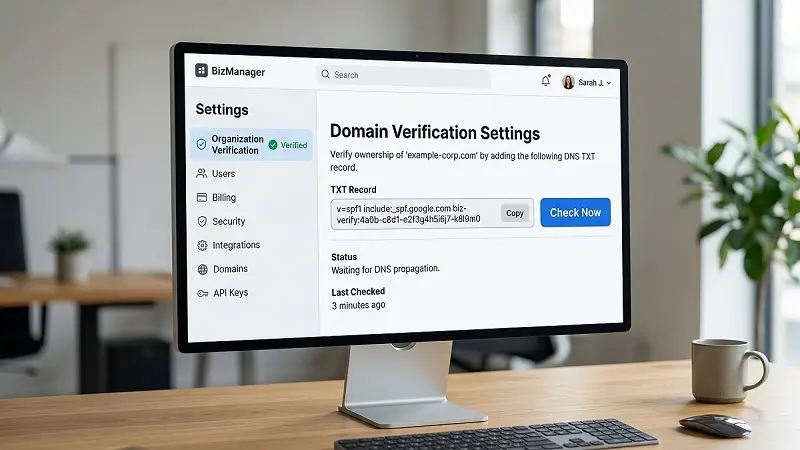
Verify your domain
Domain verification proves that your business controls the domain used for work accounts. It also helps with Managed Apple Accounts, domain capture, federated sign-in, directory sync, Branded Mail, and other Apple Business features.
The process is simple:
- Add your domain in Apple Business.
- Copy the TXT record.
- Add the TXT record in your DNS settings.
- Go back to Apple Business.
- Select Check Now.
- Fix any domain conflict if another organization already claimed the domain.
Apple says that after the TXT record is correctly added, Apple Business changes the domain status to verified ownership. Apple also says you can remove the TXT record after the domain is verified if needed.
A common mistake is adding the TXT record to the wrong DNS zone. Another mistake is checking too soon. DNS changes can take time. So, if verification fails, check the record, wait, and try again.
For deeper help, add an internal link here to your business domain setup guide or Managed Apple Accounts guide .
Add admins, roles, and backup access
After your account is ready, add the right people. Do not let one person control the full Apple Business account alone.
Apple Business uses roles to control what each user can do. Apple lists default roles such as Organization Administrator, IT Administrator, Marketing Administrator, and Staff. Each user needs at least one role.
| Role | Best use |
| Organization Administrator | Full account control |
| IT Administrator | Device setup, MDM tasks, users, and technical work |
| Marketing Administrator | Brand, location, and customer-facing details |
| Staff | Basic work account use |
Next, add at least two Organization Administrators. Then give IT staff the access they need, without giving everyone full admin rights.
This is also a good place to link to your Apple device management services page. Readers who need help with admin access may also need help with device policy planning.
Choose built-in device management or external MDM
Now choose how devices will be managed.
Apple Business can use:
- Built-in device management
- An external MDM
- Both, in some setups
External MDM tools include Microsoft Intune, Jamf, Kandji, Mosyle, Addigy, ManageEngine, and others. Apple says external device management services use a service token, and those tokens expire after one year.
Built-in device management may work for small teams that need a simpler setup. However, larger companies often use external MDM because they need deeper device rules, app controls, compliance checks, reporting, and help desk workflows.
For this section, add a natural link to your MDM setup guide . Example: If you are still choosing a tool, read our MDM setup guide before you connect Apple Business to a device management service.
Connect Apple Business to your MDM
Most MDM tools follow the same basic connection flow.
Start in your MDM:
- Create an Apple enrollment or Apple Business connection.
- Download the public key from the MDM.
- Open Apple Business.
- Go to Devices, then Management Services.
- Create a new service.
- Upload the public key certificate.
- Download the service token from Apple Business.
- Go back to the MDM.
- Upload the token.
- Sync devices.
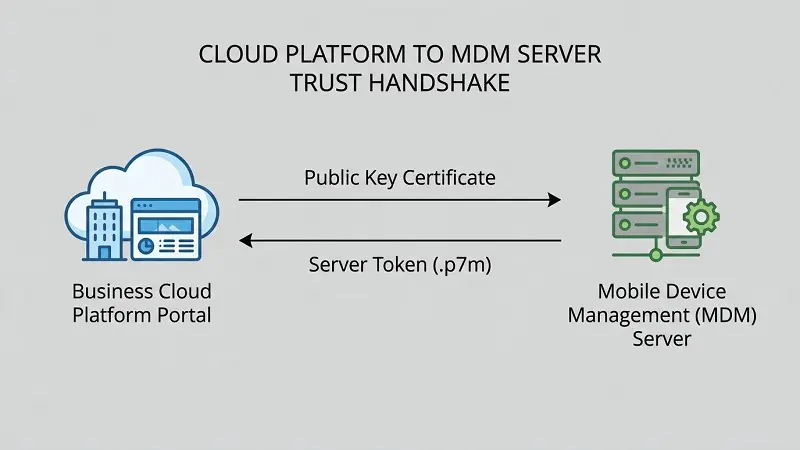
Apple says external service tokens expire after one year and must be replaced. Depending on your MDM, you may or may not get a warning before expiry. So, record the renewal date as soon as you create the token.
A simple tip: create a calendar reminder 30 days before expiry. Then renew the token before enrollment breaks.
Set up Microsoft Intune with Apple Business
Microsoft Intune is one of the most common MDM choices for Apple Business setup, especially for companies already using Microsoft 365.
Microsoft says Apple Business can be used with Intune to automate iOS and iPadOS enrollment. The Intune guide covers getting an Apple device enrollment token, syncing managed devices, creating an enrollment policy, and assigning that policy to devices.
The basic intune flow is:
- Open the Microsoft Intune admin center.
- Go to device enrollment.
- Create an Apple enrollment program token.
- Download the Intune public key.
- Create the token through Apple Business.
- Assign devices to the Intune MDM server in Apple Business.
- Upload the token back into Intune.
- Create the enrollment policy.
- Sync and test a device.
Also, Microsoft says the setup needs MDM authority, an Apple MDM Push certificate, and devices bought through Apple Business or wiped devices ready for enrollment.
Add an internal link here to your Microsoft Intune device management guide . Keep the anchor natural, such as: For a deeper setup path, read our Microsoft Intune device management guide.
Add device suppliers
Device suppliers help Apple Business receive device records for hardware bought through Apple, Apple Authorized Resellers, or approved carriers.
You may need:
- Apple Customer Number
- Reseller Number
- Carrier details
- Organization ID
Apple says you can add your first Apple Customer Number or Reseller Number under Devices, then Inventory. Apple also says you can add more than one number at any time. When entering Apple Customer Numbers, omit leading zeros.
This matters because new devices can appear in Apple Business automatically when bought through the right channel. Then you can assign them to the right MDM before employees open the box.
If devices are not showing up, check three things first:
- The reseller has your Organization ID.
- The Reseller Number is added in Apple Business.
- The device order is eligible for Apple Business.
Add existing Apple devices with Apple Configurator
Apple Configurator is used when devices were not bought through Apple Business, an Apple Authorized Reseller, or an approved carrier.
Before you use Apple Configurator, know these limits:
- Apple Configurator for iPhone needs iOS 16 or later.
- Devices must be on a supported software version.
- Devices must be at the right Setup Assistant screen.
- A Mac that is already set up must be erased before it can be added.
- After adding the device, assign it to a device management service.
Apple also says manually added devices have a 30-day provisional period after assignment and enrollment. During that period, the user can release the device from Apple Business, supervision, and the management service.
Use this section to link to your Mac management guide and iPhone and iPad business setup guide . These readers often need device-level help next.
Assign devices to a device management service
Adding devices is one step. Assigning them is the next step.
Apple says a device must be assigned to a device management service so Setup Assistant shows the enrollment pane for that service.
You can assign devices by:
- Single device
- Batch selection
- Default device assignment
- Order number
- Source
- Device type
- Storage size
- Serial number
Apple says you can paste up to 1024 serial numbers from a text file, separated by commas. Apple also says default assignment can send newly added devices to the device management service you choose.
So, if your business uses Intune for iPhones and Jamf for Macs, check assignment rules before devices ship. Otherwise, a device may land in the wrong service.
Set up apps and books
Apps and Books lets the business buy or claim app licenses and assign them through Apple Business and MDM. This helps IT install work apps without asking each employee to use a personal Apple Account.
If you use an external MDM, you may need a content token. Apple says content tokens become invalid one year after creation or when the password changes for the Managed Apple Account used to download the token. When that token is invalid, app and book license communication between Apple Business and the external device management service stops.
So, treat content tokens like service tokens. Track the expiry date. Use a dedicated Managed Apple Account for token work. Also, do not change that account password without planning the token update.
Create Managed Apple Accounts
Managed Apple Accounts are company-owned Apple accounts for work. They are different from personal Apple Accounts.
Apple says Managed Apple Accounts are owned and managed by the organization. They help keep company data separate from personal data. Apple also says these accounts can be created manually, through federated authentication, or through sync with Google Workspace, Microsoft Entra ID, or another identity provider.
You have three common choices:
| Method | Best for |
| Manual account creation | Small teams |
| Federated authentication | Companies using Google Workspace or Microsoft Entra ID |
| Directory sync | Teams that want user accounts kept up to date from an identity provider |

Apple says federated authentication can link Apple Business to Google Workspace, Microsoft Entra ID, or an identity provider using OIDC or SCIM. It also says only one identity provider can be linked at a time.
Before turning this on, check for personal Apple Accounts using your company domain. Also, test with one user before opening it for everyone.
Common Apple Business Manager setup problems and fixes
| Problem | Likely cause | Fix |
| Organization not verified | Missing second verification method or Apple cannot reach the contact | Add two methods and check contact details |
| Domain will not verify | TXT record is missing, added to the wrong DNS area, or another group claimed the domain | Check DNS, wait, then handle the domain conflict |
| Devices not appearing | Supplier number not added, reseller has not linked the order, or device was bought outside the right channel | Add supplier details, ask reseller to link devices, or use Apple Configurator |
| Device skips MDM enrollment | Device is not assigned to a service or default assignment is wrong | Assign it to the right service and reset the device if needed |
| MDM sync fails | Expired service token or wrong token uploaded | Renew the token and upload it to the same MDM service |
| Apps do not deploy | Content token expired or app license issue | Renew the content token and check app licenses |
| Admin cannot finish setup | Wrong Apple Business role | Add the right role or ask an Organization Administrator to complete the task |
Most setup problems come from three places: verification, tokens, or device assignment. So, check those first.
Apple Business Manager setup checklist
Use this checklist before you call the setup complete.
- Account created or moved to Apple Business
- Organization verified
- Domain verified
- Backup admin added
- Admin roles checked
- MDM linked
- Service token renewal date saved
- Content token renewal date saved
- Device suppliers added
- Existing devices added with Apple Configurator, if needed
- Default device assignment set
- Apps and Books configured
- Managed Apple Accounts created or federated
- Test device enrolled
- Support process written down
After that, test one iPhone, one iPad, and one Mac if your business uses all three. Then fix issues before rolling out devices to the full team.
FAQs
Is Apple Business Manager still available?
No, not as a separate portal. Apple Business Manager is now part of Apple Business. Apple said Apple Business Manager, Apple Business Essentials, and Apple Business Connect would no longer be available after Apple Business launched.
Is Apple Business Free?
Apple said Apple Business became available as a free service in the US and more than 200 countries and regions starting April 14, 2026. Some paid options, such as extra iCloud storage and AppleCare+ for Business, can be added.
Do I need an MDM for Apple Business Manager setup?
For serious device management, yes. Apple Business has built-in device management, but many companies still use an external MDM such as Intune, Jamf, Kandji, Mosyle, Addigy, or ManageEngine. External MDM tools are useful for device rules, app control, reporting, and larger device fleets.
Does Apple Business work with Microsoft Intune?
Yes. Microsoft’s Intune guide explains how to use Apple Business for automated enrollment, including token setup, device sync, enrollment policy creation, and device assignment.
Do I need a DUNS number?
Maybe. Apple lists Business ID as one verification method, and examples include DUNS Number or EIN. Apple also lists domain validation, App Store Connect in some cases, and official documents. So, a DUNS Number is useful, but it is not always the only path.
Can I add old iPhones, iPads, or Macs?
Yes, in many cases. Apple Configurator can manually add supported iPhone, iPad, Mac, Apple TV, and Apple Vision Pro devices to Apple Business. Some devices must be erased or placed at the right Setup Assistant screen first.
How often do Apple Business MDM tokens expire?
Apple says external service tokens expire after one year. Apple also says content tokens become invalid after one year or when the password changes for the Managed Apple Account used to download the token.

